Create your Discord application
Create the application your bot runs as in Discord's developer portal, then get its token and add it to a server.
Your bot needs an application on Discord's side before any code runs. Every step but the last happens in the Discord Developer Portal (opens in a new tab). Start with New Application in the top right.
Get the token
Open Bot in the sidebar. Discord shows a token once. Reset Token gives you a new one.

Keep the token private, because anyone who holds it controls your bot. You paste it in when you create your project, which stores it in .env.
Warning
The Client Secret on the OAuth2 page is a different credential. Don't paste it where the token goes.
Make a second application for production
Make one application to develop against and another one that your users add. Each has its own token. Your project's .env holds the test application's token, and the host that runs your bot holds the production one.
If both use one application, your laptop and your users' bot are the same bot. On gateway, both connections receive every interaction and race to answer it. On http, seedcord dev points the interactions endpoint URL at your tunnel, so your users' interactions reach your laptop.
Turn on the intents you need
Http only
An http bot has no gateway connection, so it declares no intents.
The Bot page also has Privileged Gateway Intents below the token. The table says what each switch covers, and you turn on the ones your bot needs. Once your app reaches 10,000 users, Discord requires you to apply for them (Discord's gateway docs (opens in a new tab) have the details).
| Switch | What it covers |
|---|---|
| Presence Intent | who is online and what they are playing |
| Server Members Intent | member joins, leaves, and updates, and fetching a server's member list |
| Message Content Intent | what a message contains, like its text and attachments |
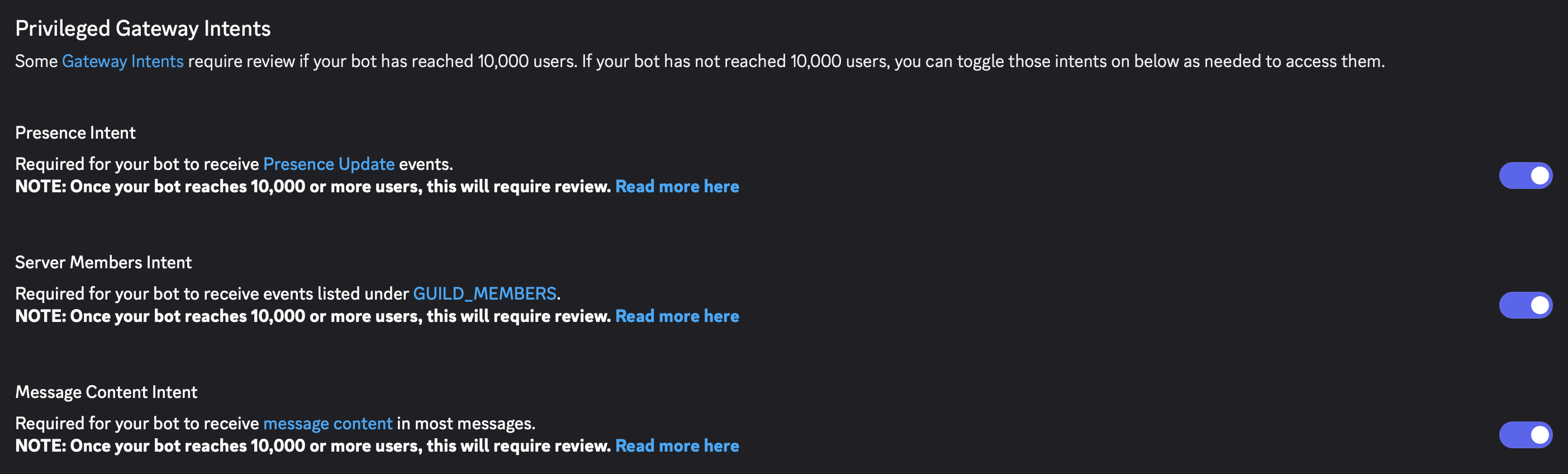
A switch here only allows an intent. Your bot also has to list the intents it uses in the intents option of clientOptions in bot.ts. The setup command on the first bot page fills that list in from your answers. If your code asks for an intent whose switch is off in the portal, Discord closes the connection and discord.js reports Used disallowed intents.
Leave the endpoint URL empty
Gateway only
A gateway bot has no endpoint URL to set.
General Information has an Interactions Endpoint URL field. Discord sends a signed request to a URL before it saves it (Discord's interactions docs (opens in a new tab) describe the check), so the field stays empty until a bot is answering. seedcord dev waits for your bot to answer, then writes the URL for you. Once you deploy, you enter your bot's public URL here yourself.
The same page shows your Public Key. An http bot uses it to verify Discord's signature on every request, but you don't copy it anywhere. A bot reads the key from Discord with your token when it starts, and seedcord build writes it into a Cloudflare Worker.
If that read fails on a server or under seedcord dev, startup throws CoreDiscordReadFailed. Set DISCORD_PUBLIC_KEY to the key shown here to skip the read. A built Worker ignores that variable.
Add the bot to a server
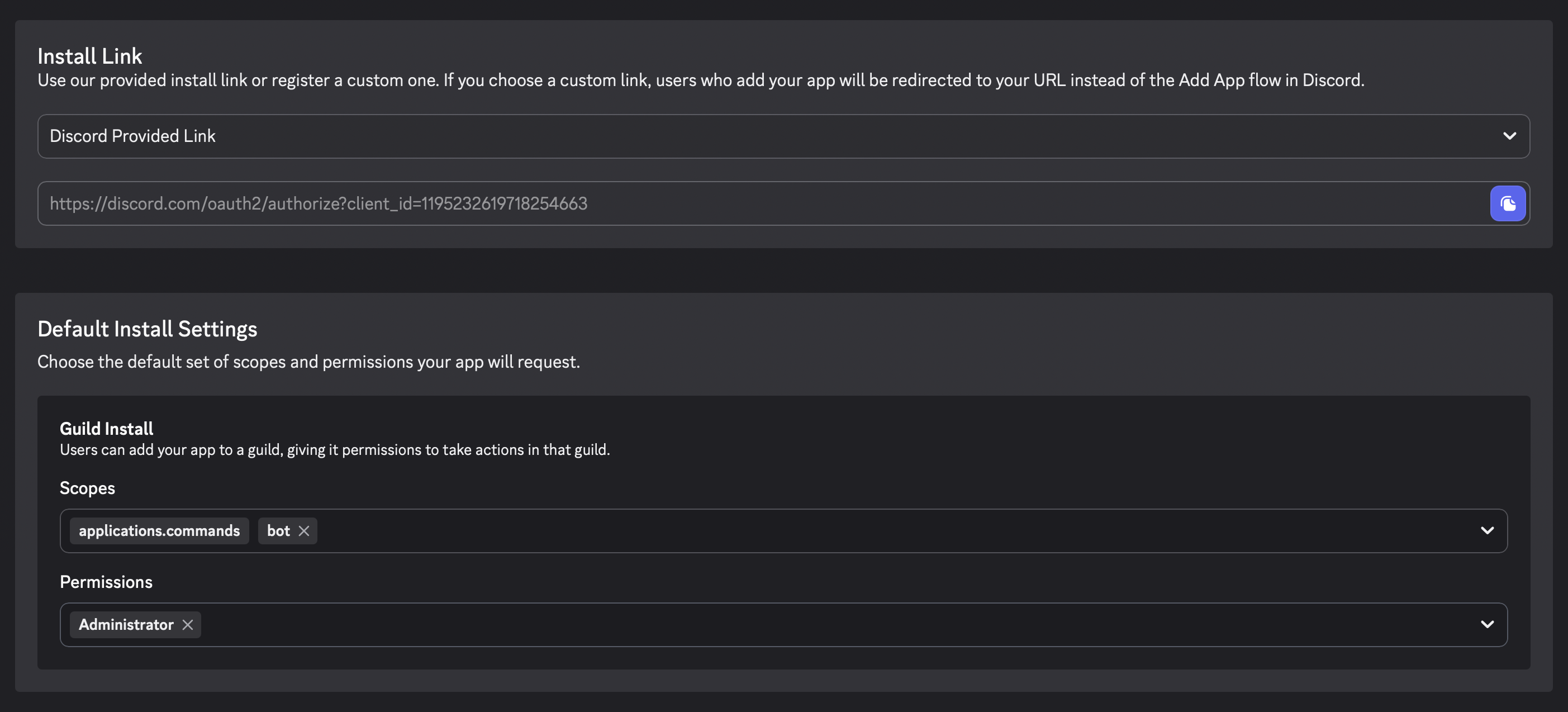
Commands deploy to your test servers only after the bot is installed in them. Open Installation.
Under Installation Contexts, turn on Guild Install. Guild Install puts your bot in a server, and User Install puts it on a person's account.

Under Default Install Settings, pick the permissions your bot needs, like Ban Members for a ban command. The scopes already include bot and applications.commands. You can't remove applications.commands.
Warning
To add a bot to a server, you need the Manage Server permission there (Discord's permissions docs (opens in a new tab) list it).
Copy the URL under Install Link and open it. Pick your server and confirm.