The dev loop
Run your bot locally with seedcord dev, which reloads a changed handler without restarting the process.
If you run your bot under a plain file watcher, every save restarts the whole process. A gateway bot then logs in to Discord again, which takes a few seconds, and Discord caps how many new gateway sessions (opens in a new tab) a bot can start in a day. The logs from before that restart are gone from your terminal too. Your bot prints every line to one stream, so reading your handler's output means scrolling past the framework's, or piping the whole thing through grep and losing the colors.
seedcord dev keeps your bot connected to Discord while you edit. When you save a handler, seedcord swaps the new version into the running bot without restarting the process. Hot reload lists the saves that still need a restart. Its log pane filters by channel and level, so you can read one part of your bot while the rest keeps running.
pnpm run devIts settings come from seedcord.config.ts, or seedcord.config.mts. The shell picks the mode, so ENV=staging seedcord dev loads your .env.staging file. Env files and modes covers which variables count.
A gateway bot or a node http bot hot reloads only in the development and test modes, and the logs/ file below exists only in development. Under ENV=staging, a save changes nothing until you press r, and no log file is written.
Running it on Bun
The CLI's entry file starts with #!/usr/bin/env node. If Node is installed, Bun follows that line unless your bunfig.toml turns on run.bun. bun create seedcord writes that file for a Bun project:
[run]
bun = true
With that file, bun run dev runs the CLI on Bun, along with the bot it loads. Without it, bun run dev starts seedcord dev on Node whenever Node is on your PATH. To run it on Bun once, use bun --bun run dev.
Running an edge bot
A cloudflare.config.ts beside seedcord.config.ts makes the bot an edge bot, which Workers sets up. seedcord dev runs it in workerd, the runtime Cloudflare runs a Worker on, through Cloudflare's Vite plugin. The Worker listens on the port in seedcord.config.ts, 3000 by default, and the dev tunnel points Discord at it. A saved handler reloads in place, as it does for a server bot.
Saving cloudflare.config.ts, .dev.vars, .dev.vars.<mode>, or an .env file asks for a restart with r. Hot reload lists every save that does.
Edge dev can't run on Bun. If the CLI runs on Bun, seedcord dev throws CliEdgeOnBun. An edge bot made with bun create seedcord gets no bunfig.toml, so bun run dev already starts on Node.
One session per Discord application
Two bot folders can read the same token, like a second copy of your project where you try out a branch. If both ran seedcord dev at once, each would deploy its commands over the other's, and an http bot's tunnel would replace the other's interactions endpoint URL.
seedcord dev holds a lock on your bot's Discord application while it runs, so only one session runs per application. It reads the application id from DISCORD_BOT_TOKEN once the bot loads, and releases the lock when you quit. A second session on the same application stops with CliDevAlreadyRunning. The error shows the folder the first session runs from, its process id, and when it started. Press q in that session, then start the new one.
A bot with its own application and token can run seedcord dev at the same time. seedcord writes the locks to your temp folder, under seedcord-dev-<your user id>, or seedcord-dev on Windows. If a session crashed and left its lock behind, the next seedcord dev deletes it and logs "Removed a stale dev session lock".
What the terminal shows
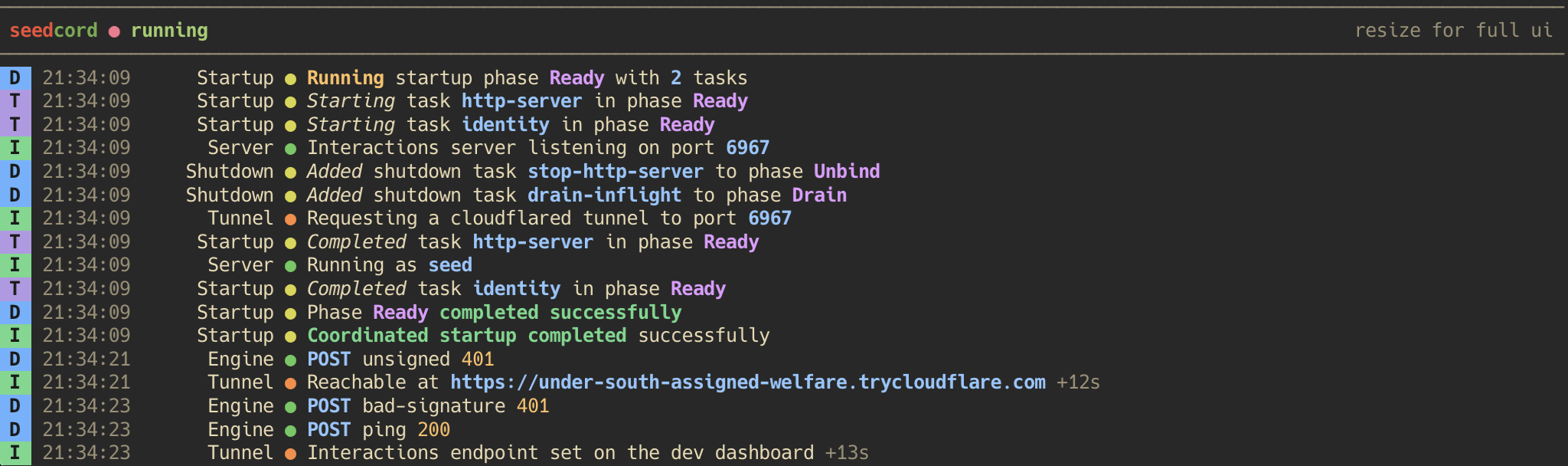
Once it starts, your terminal turns into a console for the bot. The wide pane on the right shows every line logged through seedcord's logger, plus the console output from your bot and its libraries under the Console label. It keeps the most recent 1,000 lines. A narrow sidebar on the left shows which phase the bot is in, whether it runs on a server or the edge, how long it has been up, the log filters, and the keys you can press.
The keys
| key | what it does |
|---|---|
q | quits |
Ctrl-C | one press arms it, a second quits. Any other key in between disarms it |
r | stops the bot, then starts it again from a fresh read of seedcord.config.ts |
d | stops a running bot but leaves the terminal up. The status then reads "Disconnected. Press r to restart." |
Ctrl-D | one press arms it, a second does what d does. Any other key in between disarms it |
c | empties the log pane |
f | opens the filter chips, or closes them again |
s | hides the side rail so the logs get the full width, or brings it back. Needs 80 columns or more |
p | switches the clock and label in front of each log line between fitting the width, full, and hidden |
↑ ↓ | scroll one line |
PageUp PageDown | scroll one screen |
Home or t | go to the first log line |
End or b | go to the last log line |
y n | answer the refresh prompt after you save a command file. Deployed commands covers what it sends |
The scroll keys work at any time, even while the bot is starting or shutting down. r, d, and c also work while it starts, like during a command deploy that waits on Discord's rate limit. They do nothing while it stops or restarts, or while the refresh prompt waits for y or n. d needs a bot that's starting or running, so it does nothing after a disconnect or an error.
Filtering the log
A busy bot prints more lines than you can read, though usually you only care about one part of it. Every log line carries a channel and a level, which Logging explains. The five levels are error, warn, info, debug, and trace, while your channels depend on what your bot and its plugins log to. The sidebar draws both sets as two rows of small chips, and four keys move the cursor across those chips.
| key | what it does |
|---|---|
← → | move the cursor along the chips |
Tab | switch between the channel row and the level row |
o | hide or show the chip under the cursor |
Space | show only the chip under the cursor. Press it again on the same chip to show everything |
On your first run every chip is lit, so you see every line. Pressing o on a chip hides that channel or level. To read one plugin's lines, move to its channel and press Space.
seedcord dev saves your filters to .seedcord/dev-prefs.json beside your package.json whenever you change them, along with your s and p settings. The next run opens with the same ones. If you quit with one channel soloed, the next run opens with only that channel showing. The scaffold's .gitignore already skips that folder. To start from every chip lit, delete the file.
When the terminal is small
The sidebar needs room, so seedcord picks a layout from the terminal's size.
| size | layout | filter chips |
|---|---|---|
| 32 rows and 120 columns or more | the sidebar, with the status, the chips, and the keys | always open |
| 23 to 31 rows, 120 columns or more | the same sidebar | closed until you press f, which opens them in place of the status |
| 23 rows or more, 80 to 119 columns | a slim rail with the status and the keys | closed until you press f, which swaps the logs for the chips |
| 23 rows or more, under 80 columns | two status rows above the logs | the same as the slim rail |
| under 23 rows | one status line above the logs | the same as the slim rail |
Press f again to go back. The four filter keys work while the chips are open, and the status adds "filtered" while any filter is on. Your logs and the scroll keys work at every size.
From 80 columns up, s hides the sidebar or the slim rail and shows the two status rows instead, which gives the logs the full width.
Each log line starts with a clock and a label. While p is on fitting the width, seedcord removes the clock's seconds first as the log pane narrows, then the label, then the clock, to leave room for the message. Press p to always show all of it, or to hide it.
Without a terminal
When stdin or stdout is a pipe, or CI is set to any value, seedcord dev skips the terminal UI and prints each log line as it comes. That's how it runs from a script, a process manager, or a container started without -t. Nobody is there to press a key, so it answers the prompts itself:
- A save that needs a restart restarts the bot.
- A change to your command files refreshes your commands, the same as pressing
y. - A bot that fails to start stops
seedcord devwith exit code 1.
Ctrl-C or SIGTERM stops it.
Where the logs go
The terminal fills your whole console while it runs, so the log pane is the only place those lines appear on screen. In development mode seedcord also writes every line to a file under logs/, so a restart or the 1,000-line limit doesn't lose them. A logger.sinks list in your bot config replaces that file sink. When you quit, the terminal prints the logs/ folder either way.
seedcord dev stopped. logs: logs/Note
The bot writes a new file there each time it starts, restarts included, without deleting the old ones. Delete them yourself once the folder collects too many files.
The health server
Under seedcord dev, a gateway or node http bot answers the same health path your host calls in production. The server build covers what it answers and how to configure it.